


When companies start using Microsoft 365 widely, apps become the link between people and their data. This is very useful, but it also creates a special risk: Application Permissions. Unlike user-based access (delegated permissions) that follow each person’s security rules like MFA or Conditional Access, app permissions let software act on its own—often with access to the entire tenant. If not managed carefully, a single stolen secret could quietly read emails, move through SharePoint, or access your whole directory.
Delegated vs. Application permissions (why it matters)
- Delegated Permissions: The application acts on behalf of a user who is actually signed in. The actions it performs are limited to the permissions that the user has, and it is subject to all access policies (MFA, Conditional Access, logging, etc.).
- Application Permissions: The application operates independently, without a signed-in user, with broad access to Microsoft 365 services and without user-based controls. These permissions allow the application to act at the Tenant level and are sometimes equivalent to Admin access.
Bottom line: Delegated = user-bounded. Application = powerful and potentially risky if left unchecked.
The risk surface of application permissions
If an app’s client secret or certificate is stolen, or if an over-privileged, unused, or malicious app slips through – attackers can:
- Read email, files, groups, users, and more (often silently and at scale).
- Operate like an admin in the background, evading user-based controls.
- Persist via dormant “enterprise applications” you’ve forgotten about.
A step-by-step defense plan
1. Lock down Consent
Goal: Stop surprise privilege escalation at the door.
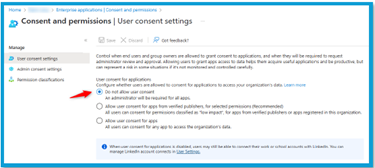
- User Consent Settings (App Consent Policies): Limit who can grant consent to apps – ideally admins only for broad Microsoft 365 data access or other high-impact permissions.
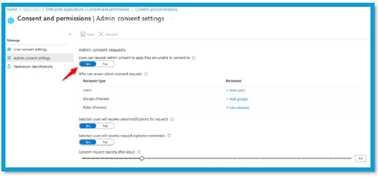
- Admin Consent Workflow: Allow users to request consent while forcing explicit admin approval. This preserves agility without sacrificing control.
Where to set it: Entra admin center → Applications → Enterprise applications → Consent and permissions (configure User consent and Admin consent).
2. Turn on the Unified Audit Log (UAL)
Goal: See what apps are actually doing.
- Enable the UAL to track OAuth/Graph operations, including sensitive events like Consent to application. This is critical for detection and retroactive investigations.
3. Inventory & right-size enterprise apps (Monthly)
Goal: Remove stealthy backdoors; shrink blast radius.
- Scan Enterprise Applications and flag those with Application Permissions – especially high-impact scopes like: Mail.Read, Files.Read.All, Directory.Read.All, User.Read.All, Group.ReadWrite.All.
- Disable or delete unused apps; revoke unneeded scopes; rotate or remove expired or stale client secrets/certificates.
- Deactivate suspicious apps not tied to known services or owners.
4. Add analytics & enforcement
Goal: Detect and stop anomalous app behavior.
- Microsoft Defender for Cloud Apps: Monitor for risky Graph patterns (bulk reads, unusual resource access, anomalous locations).
- SIEM (e.g., Sentinel, Splunk): Ingest Entra/M365 logs, build detections for consent spikes, new app registrations, privilege changes, and data exfiltration patterns.
5. Institutionalize a quarterly app review
Goal: Keep control fresh as your environment evolves.
Create a lightweight, recurring process:
- Export current Enterprise Apps with permissions & owners.
- Re-validate business need and least-privilege scopes.
- Confirm secret/cert hygiene (age, expiry, rotation).
- Document changes and owners for accountability.
Quick implementation checklist
- Restrict User Consent for broad Graph scopes to admins.
- Enable the Admin Consent workflow.
- Turn on the Unified Audit Log and verify events are flowing.
- Inventory Enterprise Applications; focus on Application Permissions and the listed high-risk scopes.
- Remove unused apps, revoke redundant scopes, rotate secrets/certs.
- Plug M365/Entra logs into Defender for Cloud Apps and your SIEM with app-centric detections.
- Run a quarterly review; keep an owner-of-record for every app.
Final thoughts
Application Permissions are essential for automation and integrations—but they require design-level security. By tightening consent, auditing continuously, and monitoring for anomalies, you convert a high-impact risk into a managed, observable, and reviewable control surface. Start with consent policies and the UAL, then mature into continuous inventory and analytics.


